Problem
I recently encountered an informational message on GitLab. I had used almost all the 400 minutes that the free tier provides for GitLab runners. I have previously run GitLab runners locally using Docker, however I wanted something to run in the cloud.

Setup
- Install docker with OrbStack or Docker Desktop on local machine
- Create a new VPC with 2 private subnets and that is connected to the internet via NAT gateway, allowing outbound traffic.
- vpc-with-nat-and-instance-connect.yaml
- Run that cf template
vpc-with-nat-and-instance-connect.yaml
AWSTemplateFormatVersion: '2010-09-09'
Description: 'VPC with 2 private subnets, NAT gateway, and Instance Connect endpoint'

Parameters:
  S3BucketName:
    Type: String
    Default: "ntwklab-aws-gitlab-runner"
    Description: "Name of the S3 bucket for Lambda functions"

Resources:
  S3Bucket:
    Type: AWS::S3::Bucket
    Properties:
      BucketName: !Ref S3BucketName
      VersioningConfiguration:
        Status: Enabled
      PublicAccessBlockConfiguration:
        BlockPublicAcls: true
        BlockPublicPolicy: true
        IgnorePublicAcls: true
        RestrictPublicBuckets: true

  VPC:
    Type: AWS::EC2::VPC
    Properties:
      CidrBlock: 10.0.0.0/16
      EnableDnsHostnames: true
      EnableDnsSupport: true

  InternetGateway:
    Type: AWS::EC2::InternetGateway

  AttachGateway:
    Type: AWS::EC2::VPCGatewayAttachment
    Properties:
      VpcId: !Ref VPC
      InternetGatewayId: !Ref InternetGateway

  PublicSubnet:
    Type: AWS::EC2::Subnet
    Properties:
      VpcId: !Ref VPC
      CidrBlock: 10.0.1.0/24
      AvailabilityZone: !Select [0, !GetAZs '']
      MapPublicIpOnLaunch: true

  PrivateSubnet1:
    Type: AWS::EC2::Subnet
    Properties:
      VpcId: !Ref VPC
      CidrBlock: 10.0.2.0/24
      AvailabilityZone: !Select [0, !GetAZs '']

  PrivateSubnet2:
    Type: AWS::EC2::Subnet
    Properties:
      VpcId: !Ref VPC
      CidrBlock: 10.0.3.0/24
      AvailabilityZone: !Select [1, !GetAZs '']

  NATGatewayEIP:
    Type: AWS::EC2::EIP
    DependsOn: AttachGateway
    Properties:
      Domain: vpc

  NATGateway:
    Type: AWS::EC2::NatGateway
    Properties:
      AllocationId: !GetAtt NATGatewayEIP.AllocationId
      SubnetId: !Ref PublicSubnet

  PublicRouteTable:
    Type: AWS::EC2::RouteTable
    Properties:
      VpcId: !Ref VPC

  PublicRoute:
    Type: AWS::EC2::Route
    DependsOn: AttachGateway
    Properties:
      RouteTableId: !Ref PublicRouteTable
      DestinationCidrBlock: 0.0.0.0/0
      GatewayId: !Ref InternetGateway

  PublicSubnetRouteTableAssociation:
    Type: AWS::EC2::SubnetRouteTableAssociation
    Properties:
      SubnetId: !Ref PublicSubnet
      RouteTableId: !Ref PublicRouteTable

  PrivateRouteTable:
    Type: AWS::EC2::RouteTable
    Properties:
      VpcId: !Ref VPC

  PrivateRoute:
    Type: AWS::EC2::Route
    Properties:
      RouteTableId: !Ref PrivateRouteTable
      DestinationCidrBlock: 0.0.0.0/0
      NatGatewayId: !Ref NATGateway

  PrivateSubnet1RouteTableAssociation:
    Type: AWS::EC2::SubnetRouteTableAssociation
    Properties:
      SubnetId: !Ref PrivateSubnet1
      RouteTableId: !Ref PrivateRouteTable

  PrivateSubnet2RouteTableAssociation:
    Type: AWS::EC2::SubnetRouteTableAssociation
    Properties:
      SubnetId: !Ref PrivateSubnet2
      RouteTableId: !Ref PrivateRouteTable

  InstanceConnectEndpoint:
    Type: AWS::EC2::InstanceConnectEndpoint
    Properties:
      SubnetId: !Ref PrivateSubnet1
      SecurityGroupIds:
        - !Ref InstanceConnectEndpointSecurityGroup

  InstanceSecurityGroup:
    Type: AWS::EC2::SecurityGroup
    Properties:
      GroupDescription: Security group for EC2 instances with Instance Connect
      VpcId: !Ref VPC
      SecurityGroupIngress:
        - IpProtocol: tcp
          FromPort: 22
          ToPort: 22
          SourceSecurityGroupId: !Ref InstanceConnectEndpointSecurityGroup
      Tags:
        - Key: Name
          Value: InstanceConnectSG

  InstanceConnectEndpointSecurityGroup:
    Type: AWS::EC2::SecurityGroup
    Properties:
      GroupDescription: Security group for Instance Connect Endpoint
      VpcId: !Ref VPC
      SecurityGroupEgress:
        - IpProtocol: tcp
          FromPort: 22
          ToPort: 22
          CidrIp: 10.0.0.0/16
      Tags:
        - Key: Name
          Value: InstanceConnectEndpointSG

Outputs:
  VPCId:
    Description: VPC ID
    Value: !Ref VPC
    Export:
      Name: !Sub "${AWS::StackName}-VPC-ID"

  PrivateSubnet1Id:
    Description: Private Subnet 1 ID
    Value: !Ref PrivateSubnet1
    Export:
      Name: !Sub "${AWS::StackName}-PrivateSubnet1-ID"

  PrivateSubnet2Id:
    Description: Private Subnet 2 ID
    Value: !Ref PrivateSubnet2
    Export:
      Name: !Sub "${AWS::StackName}-PrivateSubnet2-ID"

  InstanceConnectEndpointId:
    Description: Instance Connect Endpoint ID
    Value: !Ref InstanceConnectEndpoint
    Export:
      Name: !Sub "${AWS::StackName}-InstanceConnectEndpoint-ID"

  InstanceSecurityGroupId:
    Description: Security Group ID for instances
    Value: !Ref InstanceSecurityGroup
    Export:
      Name: !Sub "${AWS::StackName}-InstanceSG-ID"

  S3BucketName:
    Description: S3 Bucket Name
    Value: !Ref S3Bucket
    Export:
      Name: !Sub "${AWS::StackName}-S3Bucket-Name"
aws cloudformation create-stack \
--stack-name vpc-nat-instance-connect \
--template-body file://vpc-with-nat-and-instance-connect.yaml \
--parameters ParameterKey=S3BucketName,ParameterValue=ntwklab-aws-gitlab-runner \
--region us-east-1aws cloudformation describe-stacks \
--stack-name vpc-nat-instance-connect \
--region us-east-1 \
--query "Stacks[0].StackStatus"aws cloudformation describe-stacks \
--stack-name vpc-nat-instance-connect \
--region us-east-1 \
--query "Stacks[0].Outputs"aws cloudformation delete-stack \
--stack-name vpc-nat-instance-connect \
--region us-east-13. Create a test instance in the new VPC and test connection
SG_ID=$(aws cloudformation describe-stacks \
  --stack-name vpc-nat-instance-connect \
  --region us-east-1 \
  --query "Stacks[0].Outputs[?OutputKey=='InstanceSecurityGroupId'].OutputValue" \
  --output text)

SUBNET_ID=$(aws cloudformation describe-stacks \
  --stack-name vpc-nat-instance-connect \
  --region us-east-1 \
  --query "Stacks[0].Outputs[?OutputKey=='PrivateSubnet1Id'].OutputValue" \
  --output text)

aws ec2 run-instances \
  --image-id ami-0c02fb55956c7d316 \
  --instance-type t2.micro \
  --subnet-id $SUBNET_ID \
  --security-group-ids $SG_ID \
  --region us-east-1 \
  --tag-specifications 'ResourceType=instance,Tags=[{Key=Name,Value=TestInstance}]'
Test connection to the new instance
aws ec2-instance-connect ssh \
  --instance-id i-1234567890abcdef0 \
  --os-user ec2-user \
  --region us-east-1
5. Install Node: https://nodejs.org/en/download
Creation
- Create a new Repo in GitLab
- Follow the AWS guide to step 6 to create and clone the repo
- Go to GitLab create a Person Access Token
- Login to GitLab with token on your own CLI

TOKEN=<token>
echo "$TOKEN" | docker login registry.example.com -u <username> --password-stdin
5. Go To GitLab new repo: Deploy >>> Registry
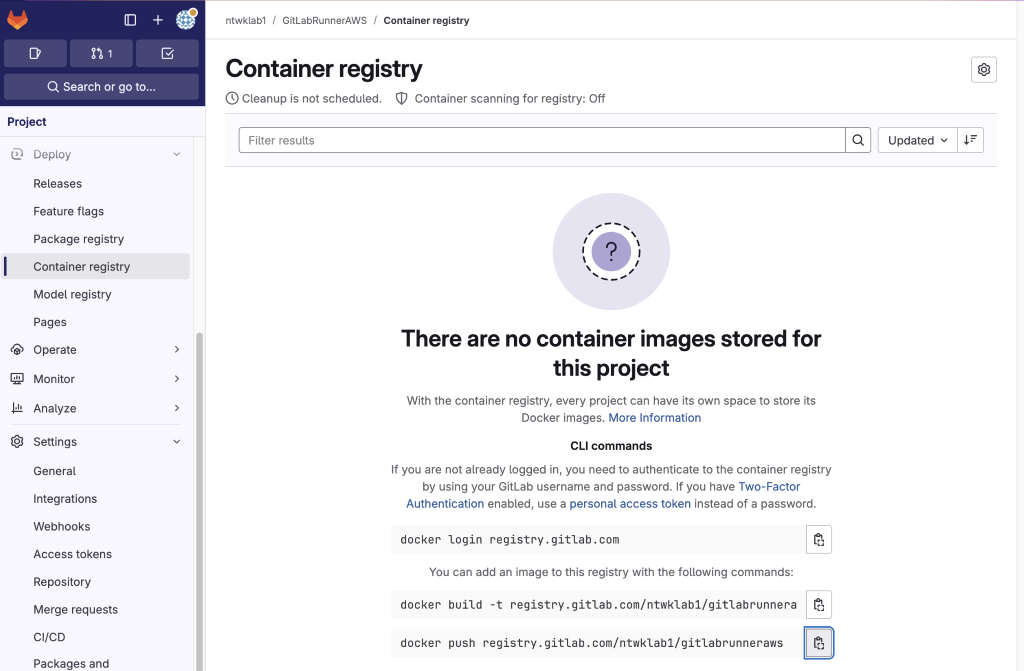
6. Copy the build command and run in the new repo
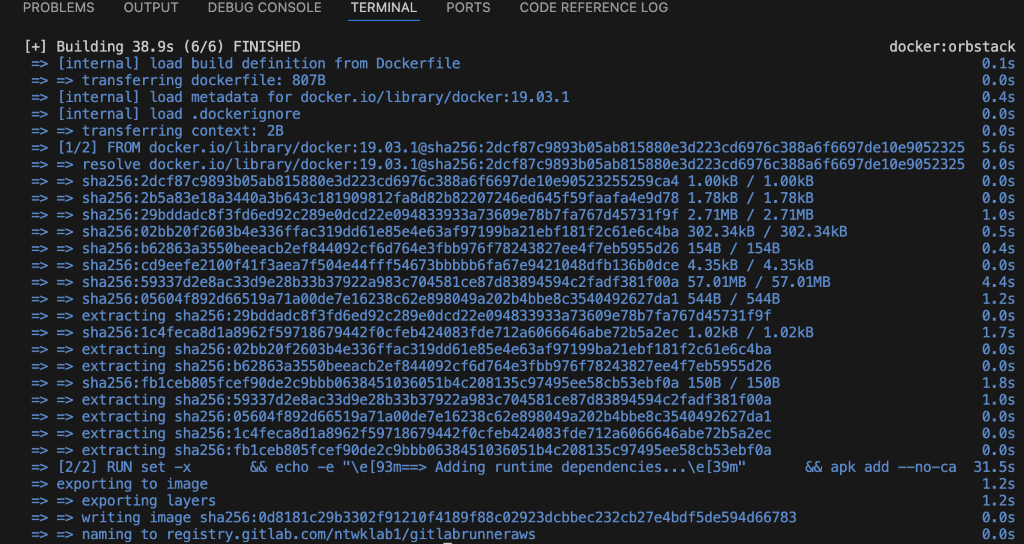
7. Push to the GitLab container registry
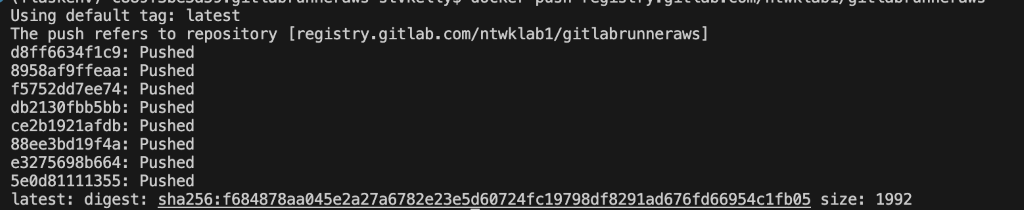
8. Refresh GitLab container registry
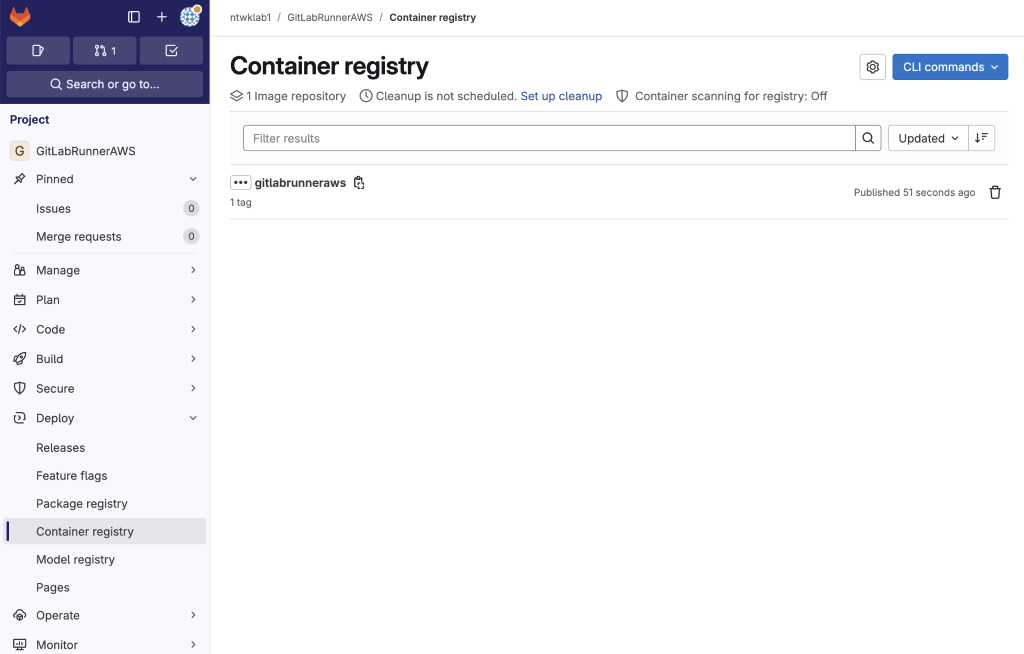
9. Create a Runner and save the token output
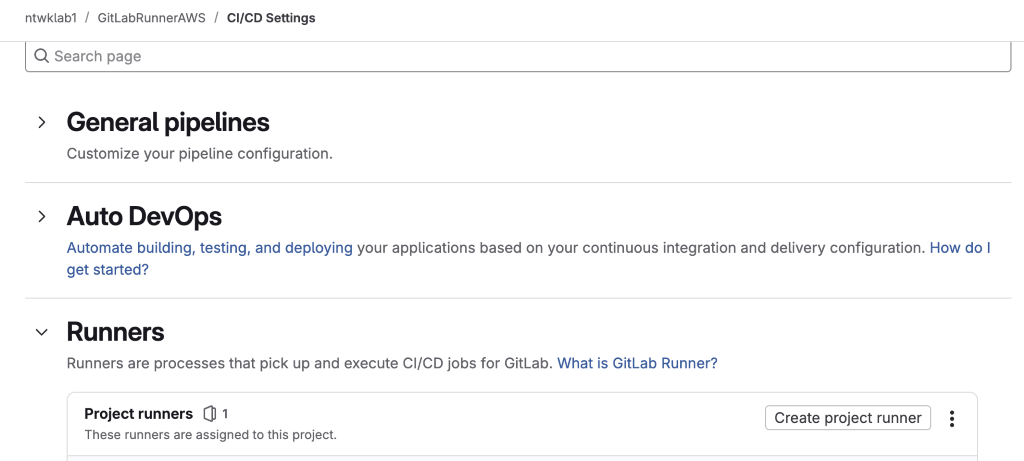
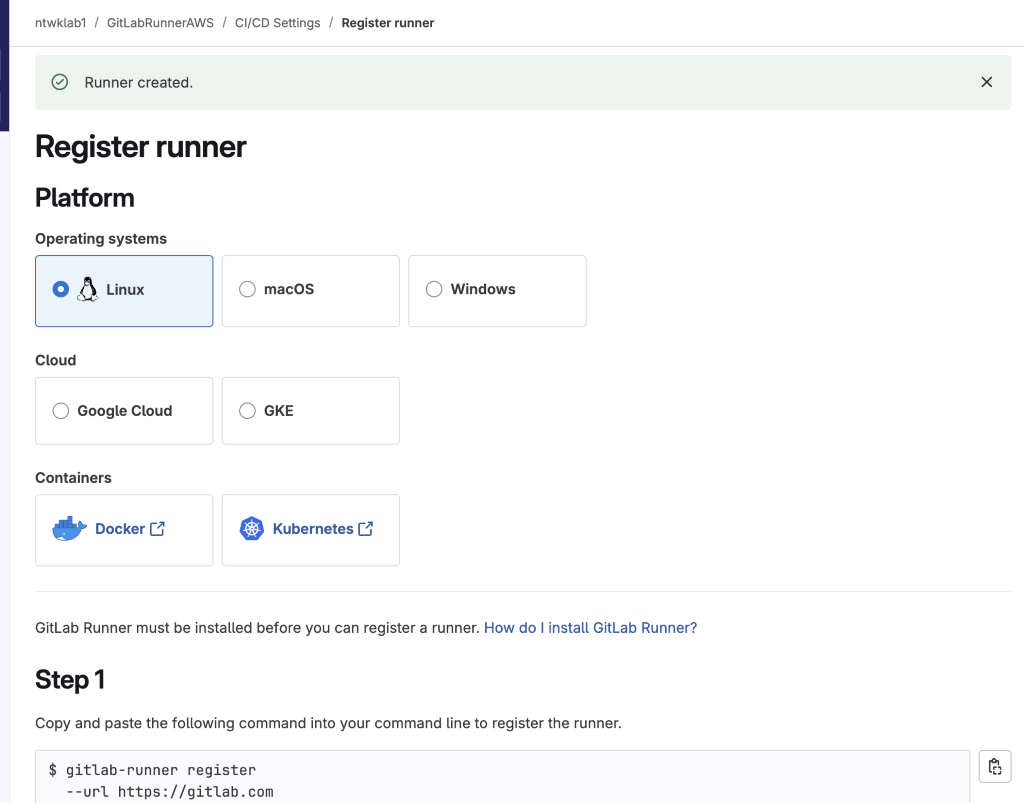
10. Edit the runner to ensure it can run on multiple projects
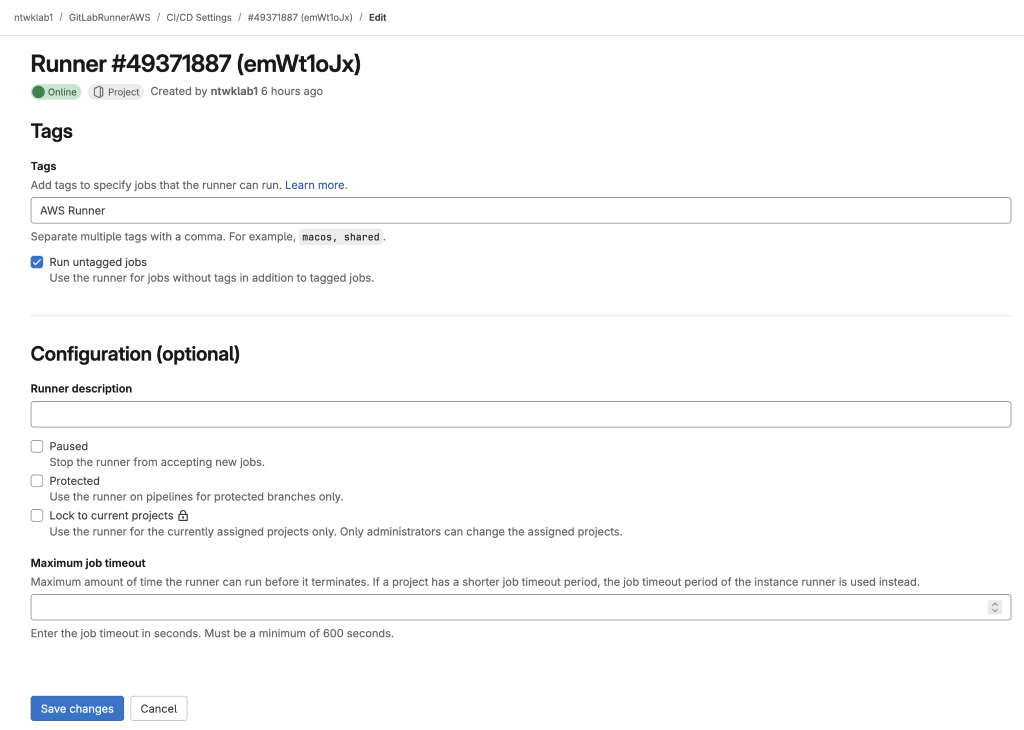
11. Create a properties file. Get the following:
- VPCID
- SubnetIds (2 private subnets)
- ImageID (An update AMI, use latest)
- Docker image path
- RunnersToken
- S3 bucket name (From the original CF template to set up the VPC)
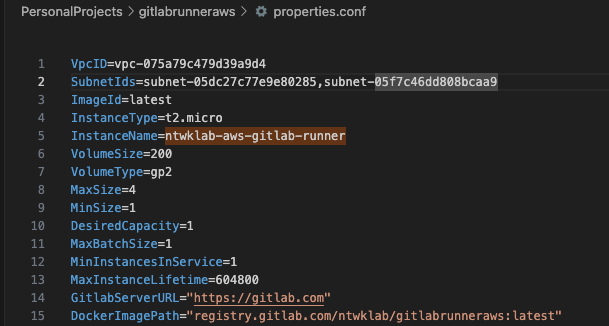
12. Run the deploy runner script. In my example, default is the name of the AWS profile I am using. You can find out the name of your profile using the commands below. If it is blank then it is default.
$ aws configure list-profiles
default

$ aws configure list
      Name                    Value             Type    Location
      ----                    -----             ----    --------
   profile                <not set>             None    None
./deploy-runner.sh properties.conf us-east-1 default runner-stack 
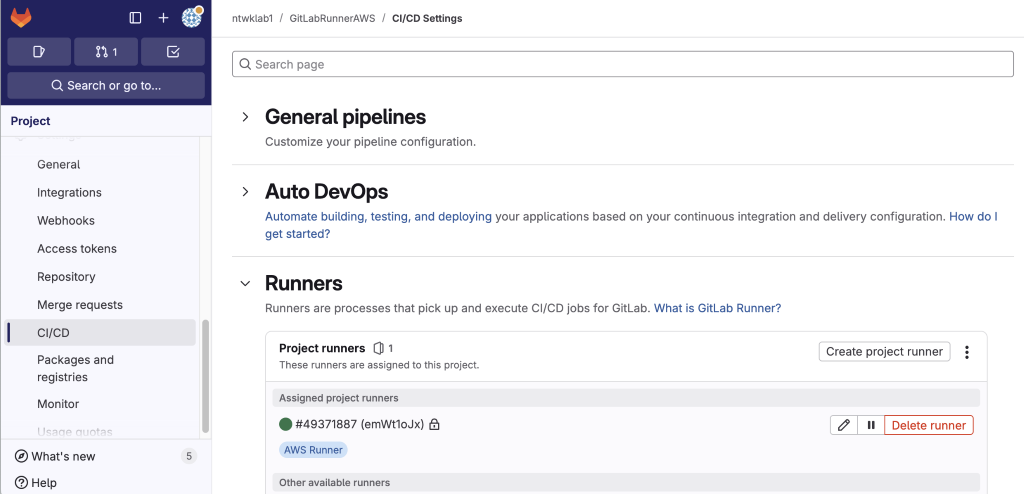
13. Runner is Online
Testing
- Turn off Instance Runners
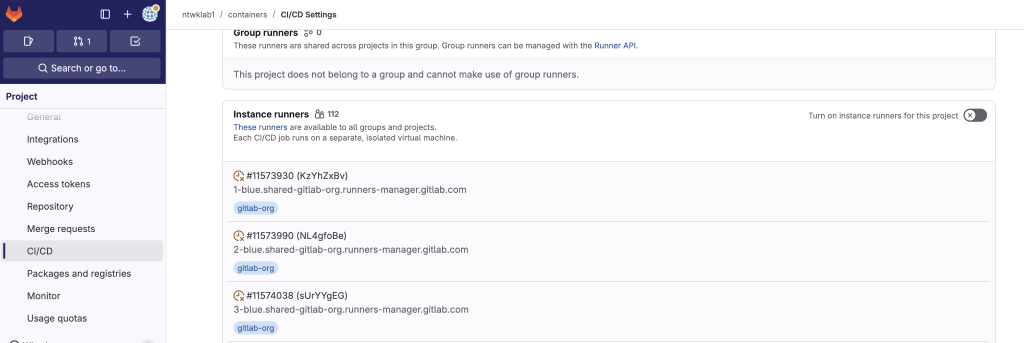
2. Confirm AWS Runner
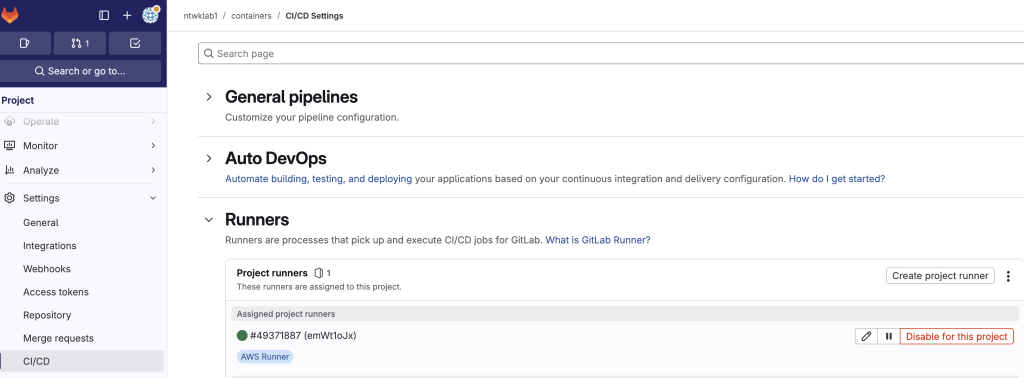
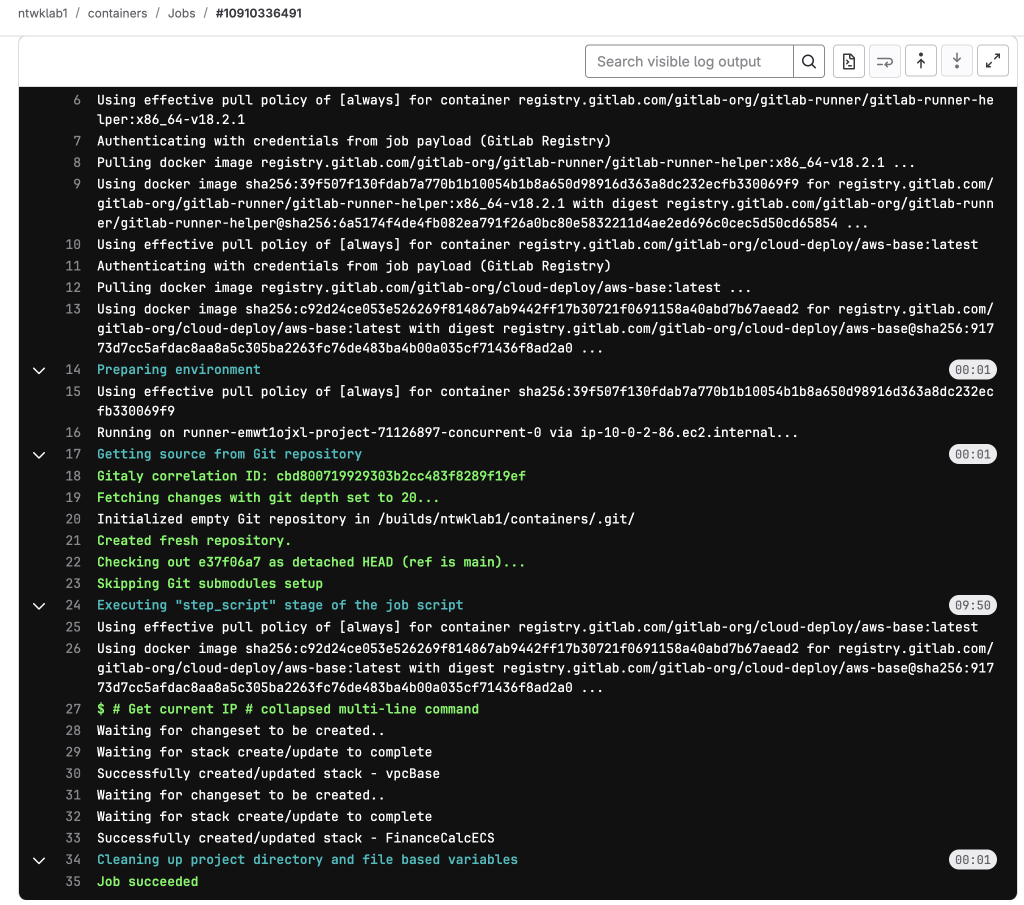
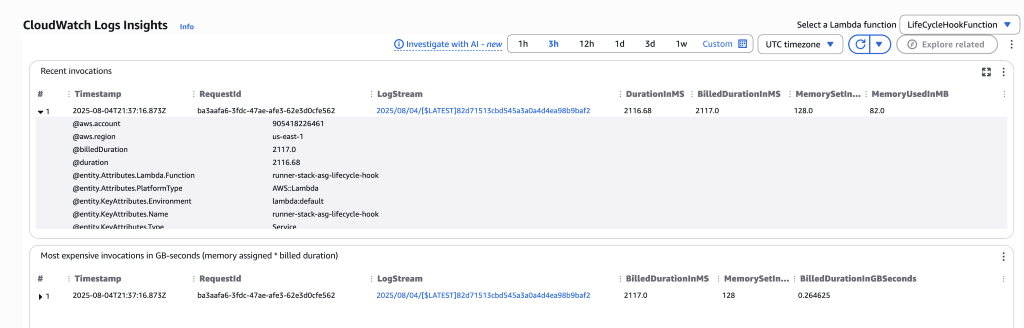
3. Run a job to test and check in the AWS Lambda application logs