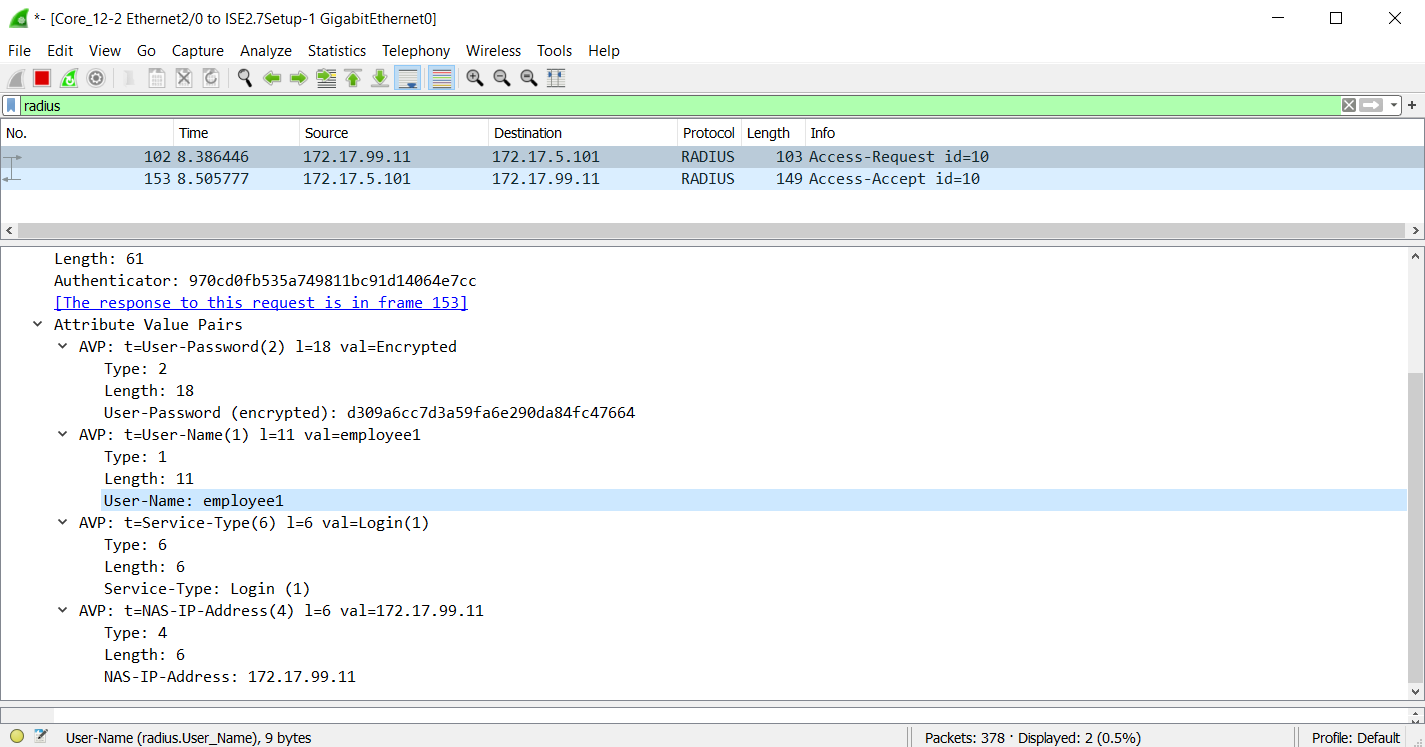
This is the configuration to get the switch access-switch1 to talk to ISE. This is the beginning stage of 802.1x. The switch will need to talk to ISE using RADIUS to ask if the user credentials are valid. ISE will ask the AD server and then a yes or no is sent back to the switch. In this lab I will test the user Employee1 from the access-switch1.
A few details
– Access-switch1 has an IP address of 172.17.99.11 (VLAN99). The default gateway for this management network is on the GW_Router.
– ISE has an IP of 172.17.5.101 (VLAN5). The default gateway is on the GW_Router
Configure RADIUS on the Switch
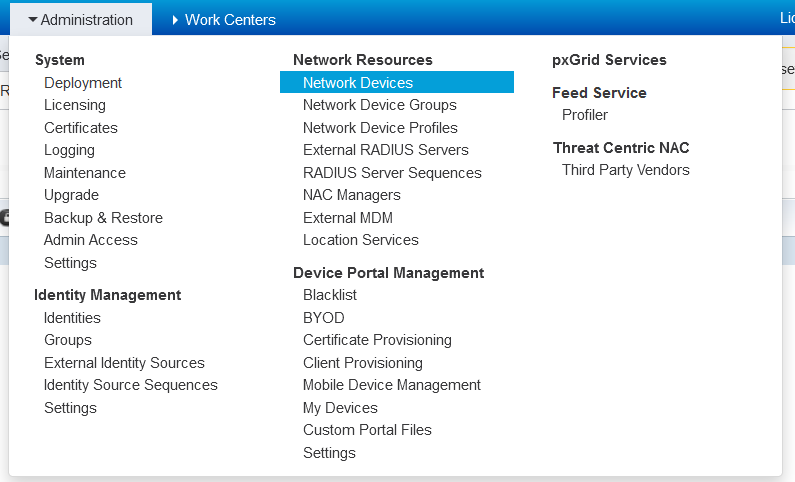
The switch will be known to ISE by the IP 172.17.99.11. It does not specifically have to be a separate management network, but this IP must be configured on the switch and in ISE.
The RADIUS key must also match on the switch and in ISE.
radius-server attribute 6 on-for-login-auth
radius-server attribute 6 support-multiple
radius-server attribute 8 include-in-access-req
radius-server attribute 25 access-request include
radius-server dead-criteria time 10 tries 3
radius-server deadtime 30
radius-server load-balance method least-outstanding
!
radius server ISE1
address ipv4 172.17.5.101 auth-port 1812 acct-port 1813
timeout 2
retransmit 1
key Stefan2020
!
ip radius source-interface Vlan99
logging origin-id ip
logging source-interface Vlan99
logging host 172.17.5.101 transport udp port 20514


aaa new-model
aaa group server radius ISE
server name ISE1
deadtime 15
aaa authentication dot1x default group ISE
aaa authorization network default group ISE
aaa accounting update periodic 15
aaa accounting identity default start-stop group ISE
aaa server radius dynamic-author
client 172.17.5.101 server-key Stefan2020
server-key Stefan2020
aaa session-id common


login on-success log
access-session mac-move deny
epm logging
!no device-tracking logging theft
device-tracking tracking
dot1x system-auth-control
dot1x critical eapol
Configure Switch in ISE
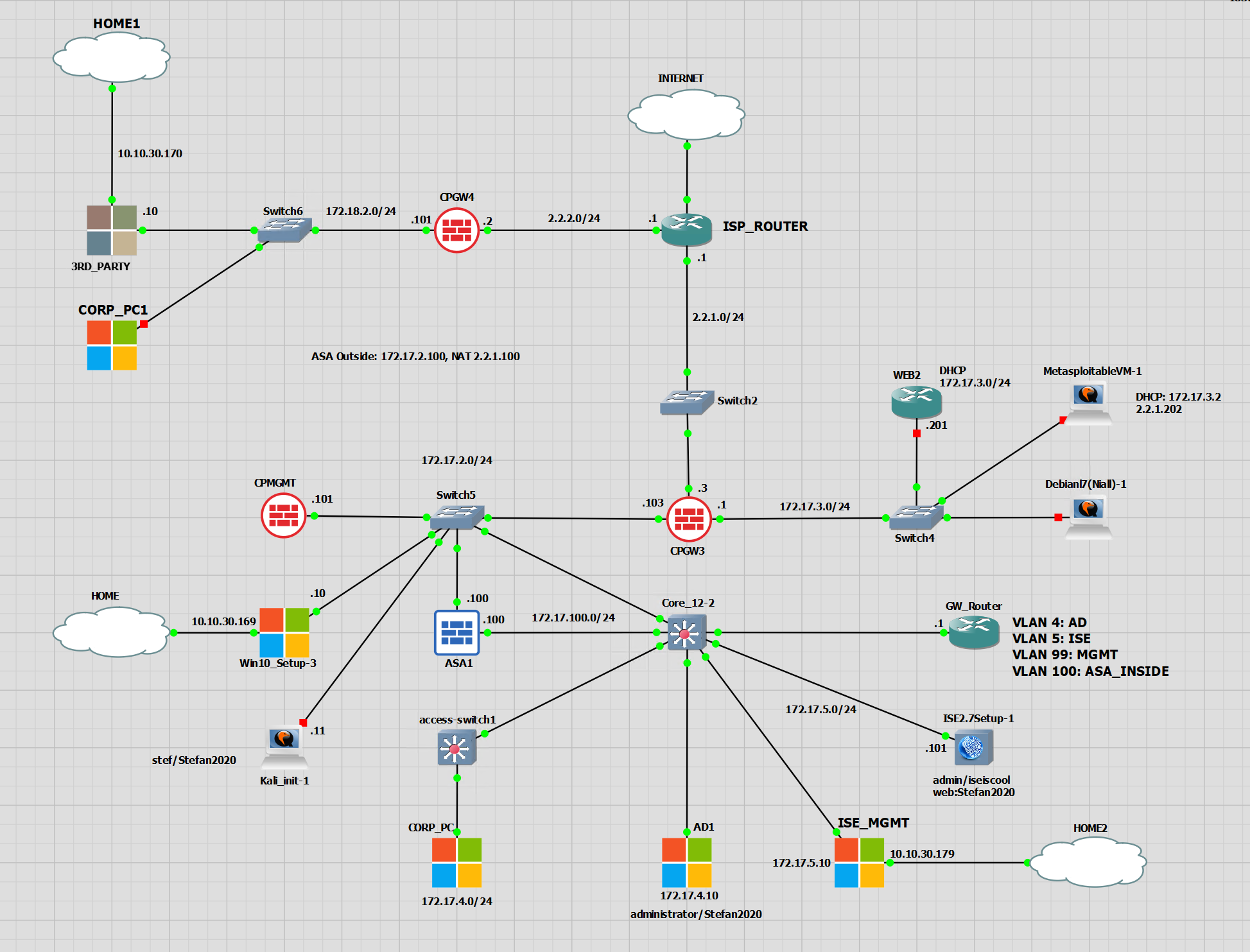
Adding the switch to ISE is very easy, navigate to: Administration > Network Resources > Network Devices
From here, click “add” and complete the device details. All that is required at minimum is the; name, IP and the RADIUS key.
Testing
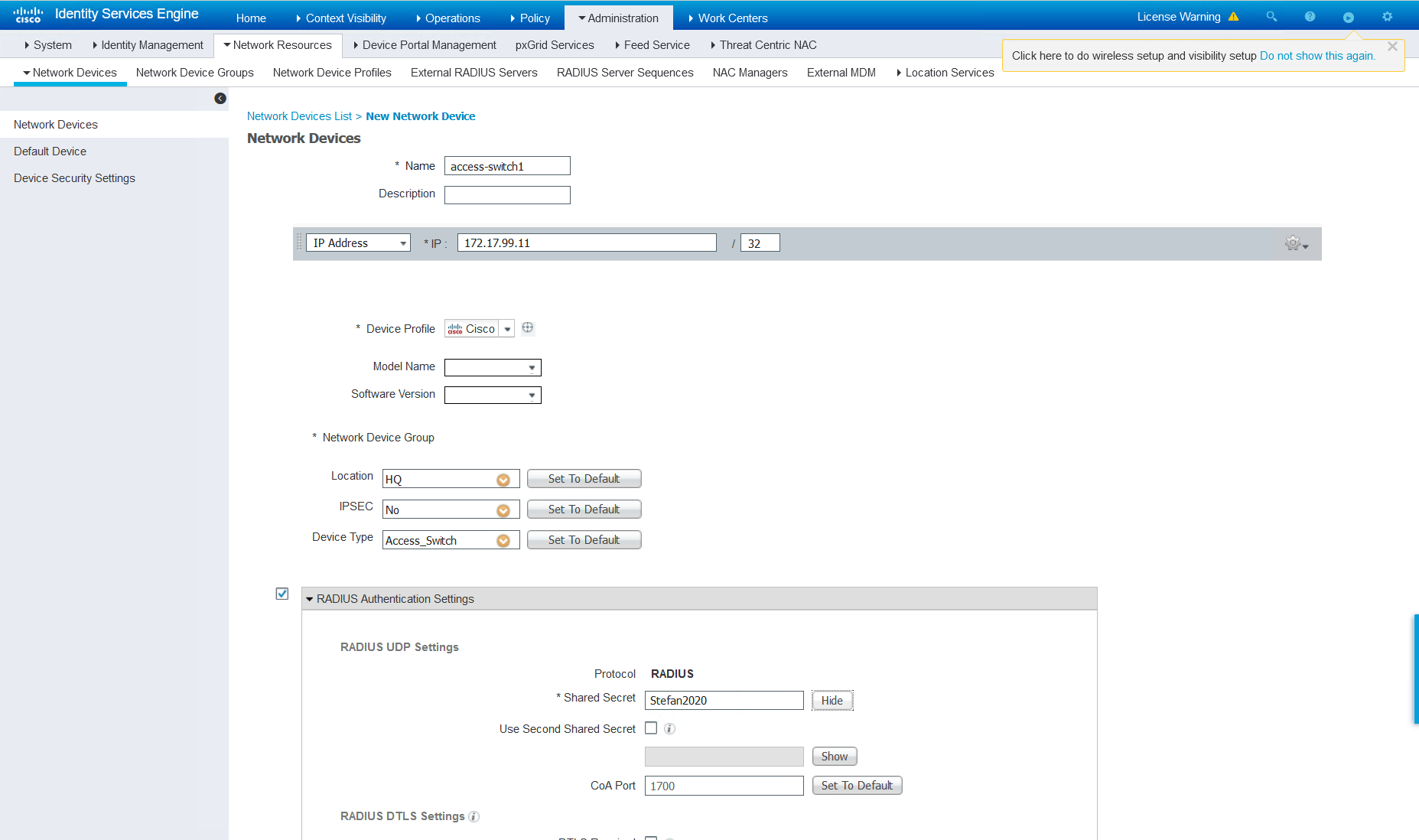
Now that the switch is in ISE, it can be tested from the switch. For this, the Employee1 user will be used. The test will send a RADIUS authentication request to ISE for Employee1. This is part of the 802.1x process.
access-switch1#test aaa group ISE employee1 Stefan2020 new-code
User successfully authenticated

USER ATTRIBUTES

username             0   "employee1"
We can also see the RADIUS communication in Wireshark. RADIUS will only encrypt the password, leaving the username to see.